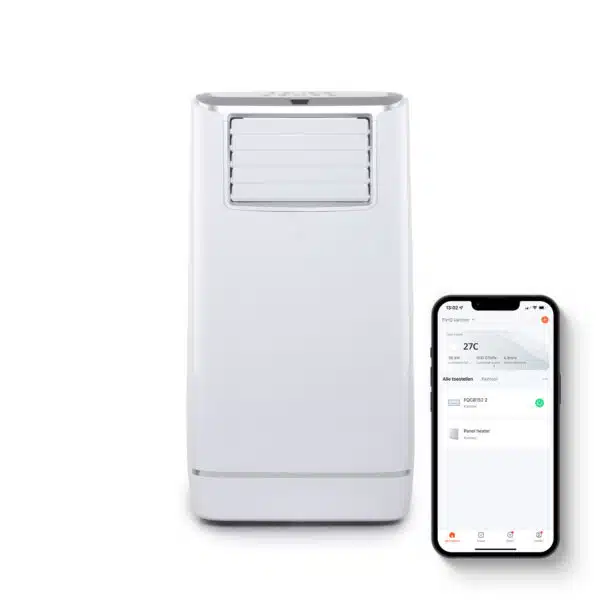
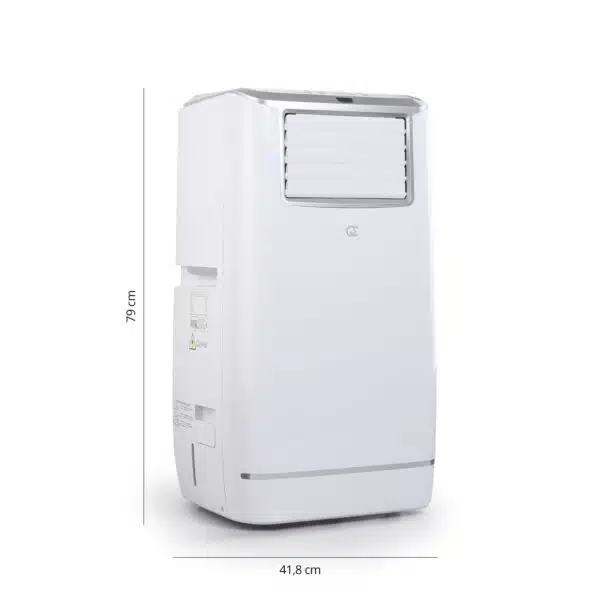






FlinQ Smart Mobile Air Conditioner 13000 BTU
499.99

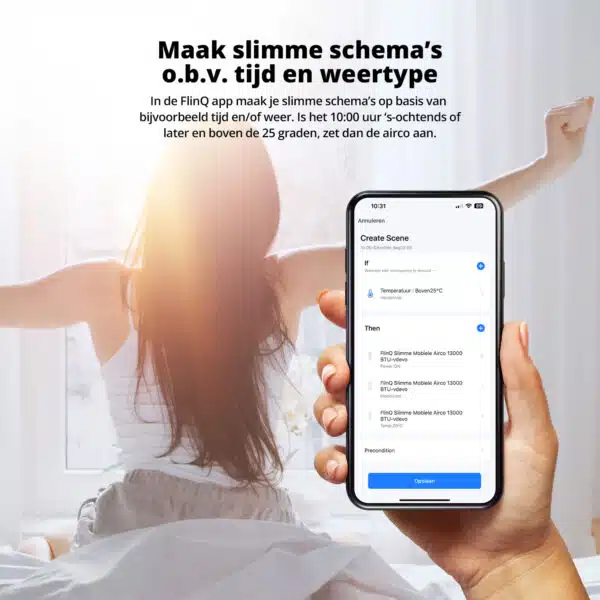
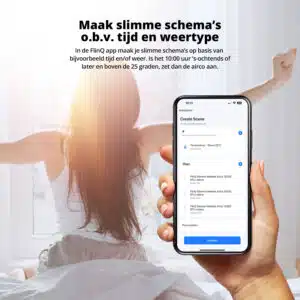
Create schedules based on time, weather, and location
Works with the free FlinQ app
 Works with
Google Home*
 Works with
Amazon Alexa*
 Works with
FlinQ App
Product (temporarily) out of stock
Leave your email address and we will inform you as soon as it is available again.
- Description
- Additional information
- Reviews (18)
- Download(s)
- Faq
Description
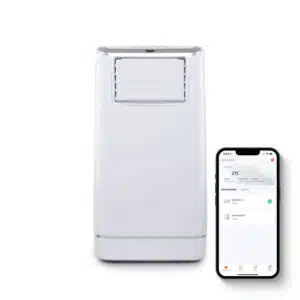
The FlinQ Smart Mobile Air Conditioner 13000 BTU with Wi-Fi is the solution for anyone who wants to enjoy fresh and cool air during hot summer days! Never come home to a warm house or bedroom again. Control this AC quickly and easily via your phone with the FlinQ App or on the device itself.
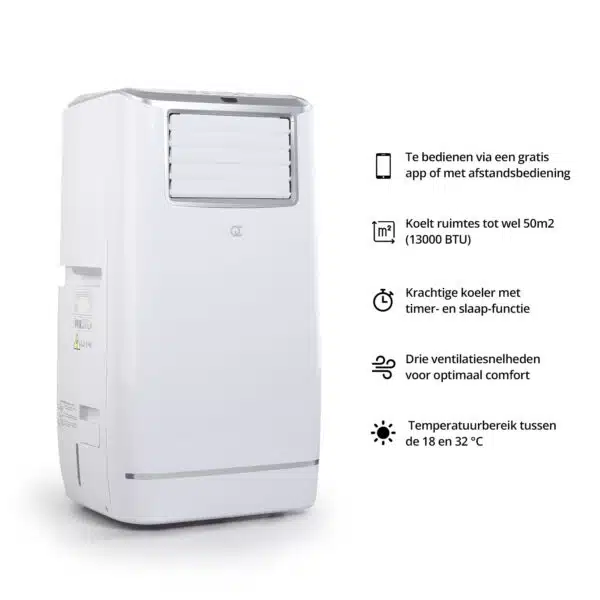
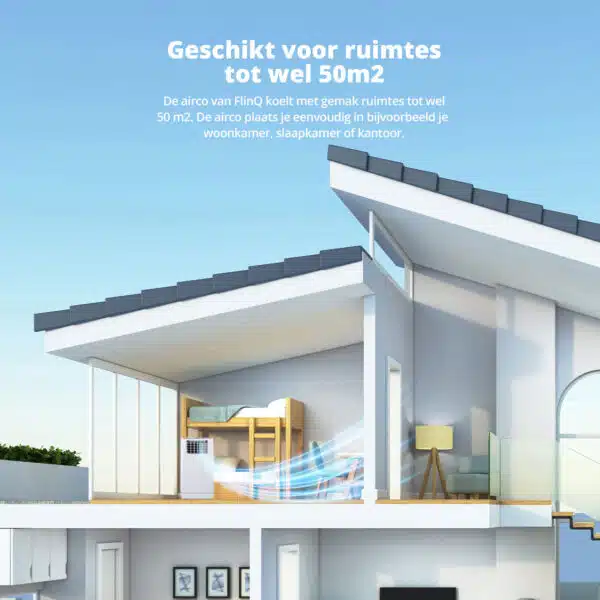
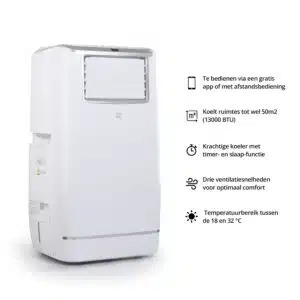
Without a temperature drop in your office, living room, or bedroom, it’s simply unbearable. Especially during the long heatwaves that await us again this summer. With the FlinQ Smart Mobile Air Conditioner 13000 BTU, you prevent sleepless nights and sweating at your desk. This smart and energy-efficient air conditioner easily cools rooms up to 50 square meters (m²).
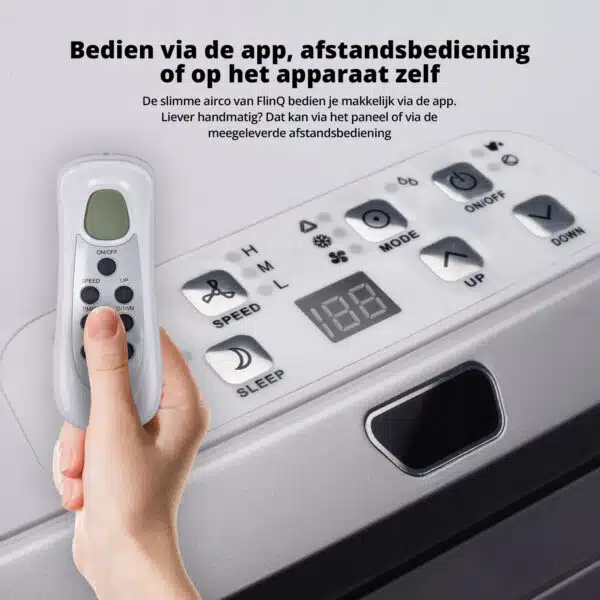
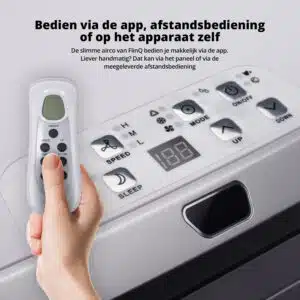
Connect the smart AC to your Wi-Fi network and download the FlinQ App. Easily control the air conditioner from a distance via the FlinQ App or use voice activation with Google Assistant or Amazon Alexa. The mobile AC also comes with a remote control as standard. So you don’t have to take an extra step to get cool. Set the temperature you want and the AC takes care of it! Wi-Fi down for a moment? No worries, there’s always the control panel on the AC itself.
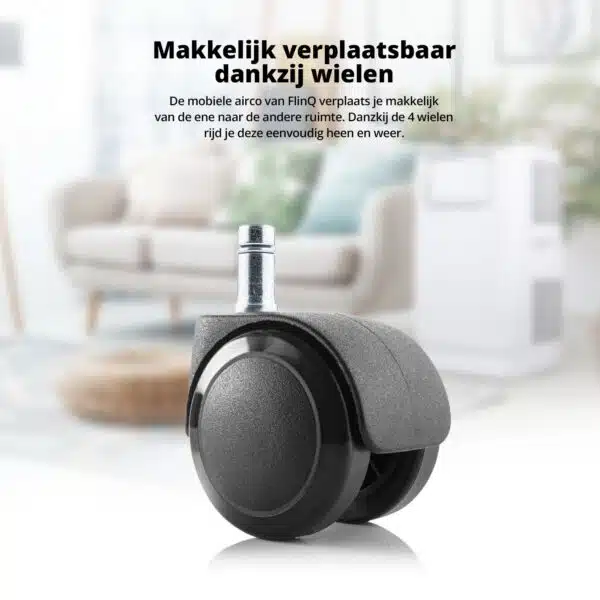
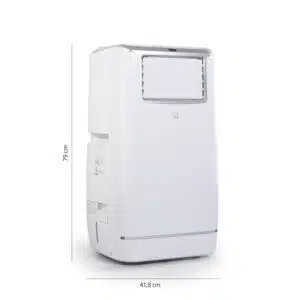
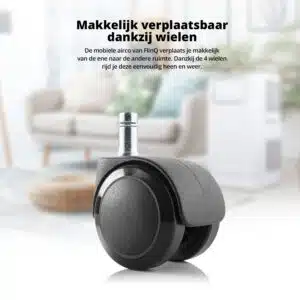
Has one room received the cooling you desired? Then simply move the cooler on wheels to the next room. The included 150 mm diameter air hose exhausts the warm air there too. If you want to completely seal your window against the sun and heat, you can order the Window Velcro Kit. The powerful AC cools, ventilates, and dehumidifies every room! No other fan can compete with that!
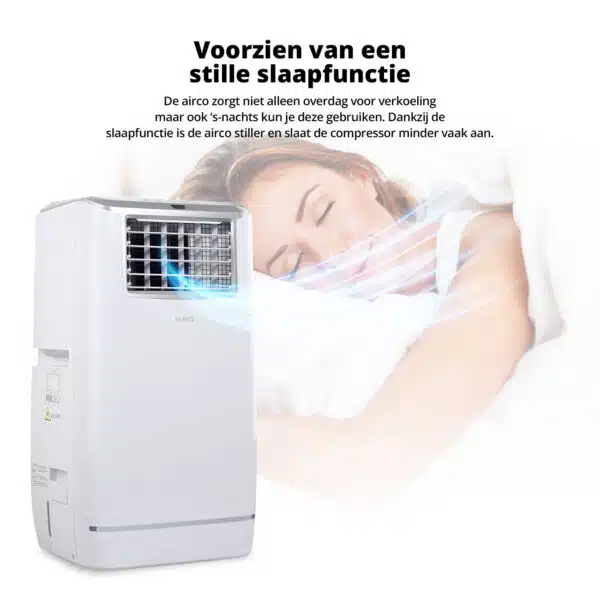
The FlinQ mobile AC also features a timer function and sleep mode and has a stylish, compact design. Easy to maintain and ideal for storage after the summer season, ensuring you’re still guaranteed cooling during late heatwaves.
In short, with the FlinQ Smart Mobile Air Conditioner 13000 BTU, you protect yourself against the summer heat.
Full control anytime, anywhere
Control FlinQ’s smart mobile ACs via the FlinQ app. The app is available for both iOS and Android devices. In the app, you can use all kinds of handy functions. Easily set programs and routines, and control the temperature and fan speed.
Nice and cool in minutes
With a cooling capacity of 13,000 BTU per hour, your home or bedroom is always nice and cool within minutes. FlinQ ACs use an environmentally friendly refrigerant (R290), which is very practical these days
Hey Google / Alexa, turn on the AC
FlinQ’s smart ACs are just that bit smarter. Use voice control to operate the AC with your voice. The mobile AC works with both Google Home and Amazon Alexa.
Additional information
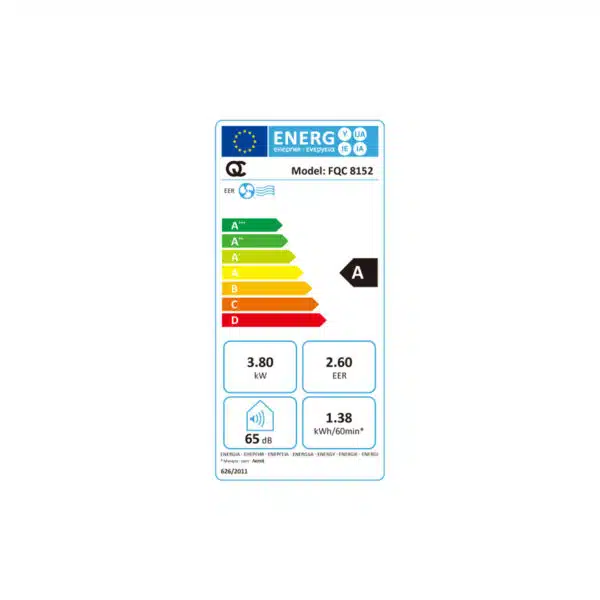
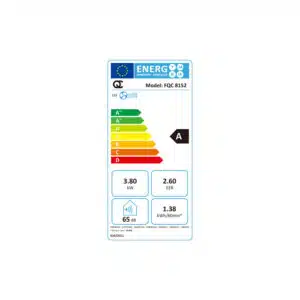
| Power consumption | 1.38 kWh / 60 min |
|---|---|
| Noise level | 65 dB (decibels) |
| Cooling capacity | 13,000 BTU / 50 m² |
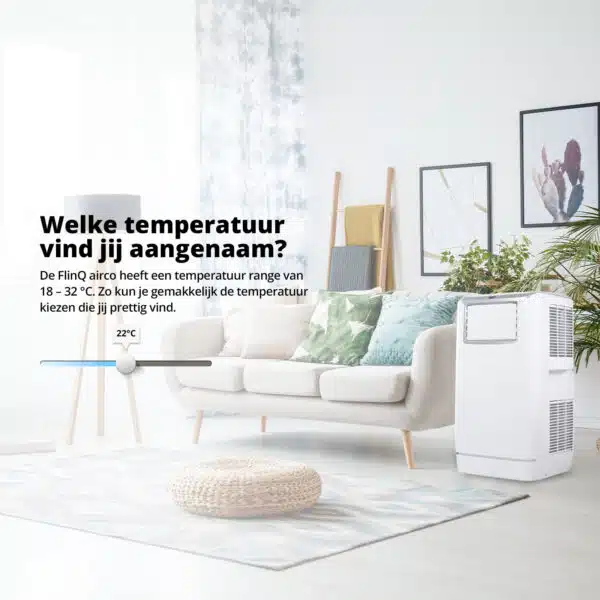
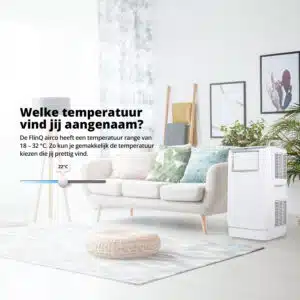
| Temperature range | 18 – 32 °C |
| Power | 220-240V~, 50Hz |
| Dehumidifying capacity | 38.4 L/day |
| Air volume (max. speed) | 430 m³/h |
| Compressor | rotary |
| Refrigerant | R-290 / 300 g |
| Fan speeds | 3 |
| Timer | 1–24 hours |
 Swipe for all available parts
 Receiving push notifications on your phone sometimes requires additional steps, especially on Android devices. Follow the steps below to receive notifications.
Step 1 – Open the FlinQ app
1. Open the FlinQ app on your phone.
2. Tap ‘Profile’ in the bottom right corner.
Step 2 – Open the app settings
1. Tap the gear icon in the top right corner.
2. Open the ‘Settings’ menu.
3. Tap ‘App notification’.
Step 3 – Turn on device alerts
1. Look for the ‘Device Alert’ option.
2. Set this option to ‘On’.
3. Check that ‘Do Not Disturb (DND)’ is turned off.
Step 4 – Check notifications on your phone
Samsung / Android
1. Open ‘Settings’ on your phone.
2. Go to ‘Notifications’.
3. Tap ‘App notifications’.
4. Find the ‘FlinQ’ app.
5. Ensure that notifications are enabled.
iPhone (iOS)
1. Open ‘Settings’ on your iPhone.
2. Go to ‘Notifications’.
3. Find the ‘FlinQ’ app.
4. Turn on ‘Allow Notifications’.
5. Turn on ‘Lock Screen’, ‘Notification Center’, and ‘Banners’.
6. Sounds and badges are optional.
When you get a message that your smart product is already linked to another account, you need to request an unbind. Click here to read how to do this.
Note: we can only process unbind requests for devices that are already linked to the FlinQ app.
If the device is linked to a Tuya account or Smart Life account, the request goes through that party. The request process works the same way.
How long does an unbind request take?
On average, this takes 3 to 5 working days. After that, you can try to connect the device again. Unfortunately, this process cannot be sped up.
When you get a message that your smart product is already linked to another account, you need to request an unbind. Click here to read how to do this.
Note: we can only process unbind requests for devices that are already linked to the FlinQ app.
If the device is linked to a Tuya account or Smart Life account, the request goes through that party. The request process works the same way.
How long does an unbind request take?
On average, this takes 3 to 5 working days. After that, you can try to connect the device again. Unfortunately, this process cannot be sped up.
With the FlinQ app, you can easily create a group of two or more devices. This is handy if you want to turn all your lights on or off at the same time, for example.
Follow these steps to create a group:
1. Open the FlinQ app on your smartphone or tablet.
2. Tap on one of the devices you want to include in the group.
3. Press the pen icon or the icon with three dots (“…”) in the top right corner.
4. Scroll down a bit and choose the “Create group” option.
5. In the overview, select the other devices you want to add to the group and press Save.
6. Give the group a name, optionally choose a room, and press Continue.
You can easily share the device with one or more people. Follow the steps below:
1. Add the device to the FlinQ app on your device.
2. Open the relevant product in the FlinQ app.
3. Press the three dots “…” in the top right corner or the pen icon.
4. Scroll to the bottom and select “Share device”.
Important: Before proceeding, the person you want to share the device with must have downloaded the FlinQ app and created an account.
5. Choose “Share with the account FlinQ”.
6. Enter the email address of the other user (this must be the email address they used to register in the FlinQ app).
7. Press “Continue”.
The other person will now receive an invitation and can operate the device.
Hybrid technology offers an effective combination of direct radiant heat (infrared) and convection heat. The heater draws in cold air at the bottom and blows out warm air from the top, quickly and efficiently heating spaces. The carbon crystal heating element provides pleasant, direct heat, while convection heat warms the entire room evenly. This allows you to enjoy comfort!
Yes, some smart products from FlinQ are supported by Homey in combination with the Tuya app. Check the Homey website to ensure that this product works well in your specific case.
It may happen that your network name or provider has changed. You will need to remove the device from your FlinQ app and add it again. In some cases, a reset of the device is necessary; you can find this procedure in your product’s manual.
FlinQ products only work with a 2.4 GHz network. In most routers, you can create separate SSIDs (network names) for both the 2.4 GHz and 5 GHz frequencies, for example:
– FlinQ-office-5GHz
– FlinQ-office-24GHz
A combined signal, where both the 2.4 GHz and 5 GHz frequencies fall under one SSID (network name), is not always supported.
If you need help changing your wifi settings, please contact your internet provider.
Yes, the FlinQ app is free. After downloading, you create an account and can connect your FlinQ devices.
The FlinQ app is available for free for both iOS and Android phones and can be downloaded via the links below.
A convection heater warms the air in the room, making a convection heater extremely suitable for heating spaces. Infrared provides an even temperature because it directly heats the objects in the room. But when you step out of the infrared radiation, it immediately feels colder. Infrared heaters are therefore used for heating things like a workspace, chair, or couch. Infrared provides radiant heat and cannot be used for heating rooms.
In the FlinQ Cloud, you can store footage and view it later. You can view it from anywhere in the world with an internet connection. The FlinQ Cloud is a paid service that you can activate through the FlinQ app for compatible products. If you don’t use this service, the camera saves the recorded footage to the internal SD card. The SD card is not included by default, and you’ll need to purchase and install one yourself.
No, this product does not support Apple Homekit or Matter.
Yes, you can add one or more products to the FlinQ app, even if they are the same products. You can organize them into a group so you can easily control them simultaneously. You can also assign a location to a device, for example: living room, bedroom, or office.
This product works seamlessly with the FlinQ app. You can download it for free on both iOS and Android devices.
Yes, this product works with Google Home and Amazon Alexa. Install your product through the FlinQ app. Open your FlinQ app, tap on profile in the bottom right and then tap on Google Home at the top (the Google Home app will open). Now follow the steps in the Google Home app. Your device is now connected to your voice assistant and you can control it using voice commands.