Order before 10 PM for next-day delivery



FlinQ Smart Panel Heater
229.99 64.99

Create schedules based on time, location and weather
Works with the FlinQ app
 Works with
Google Home*
 Works with
Amazon Alexa*
 Works with
FlinQ App
- Description
- Additional information
- Reviews (33)
- Download(s)
- Faq
Description
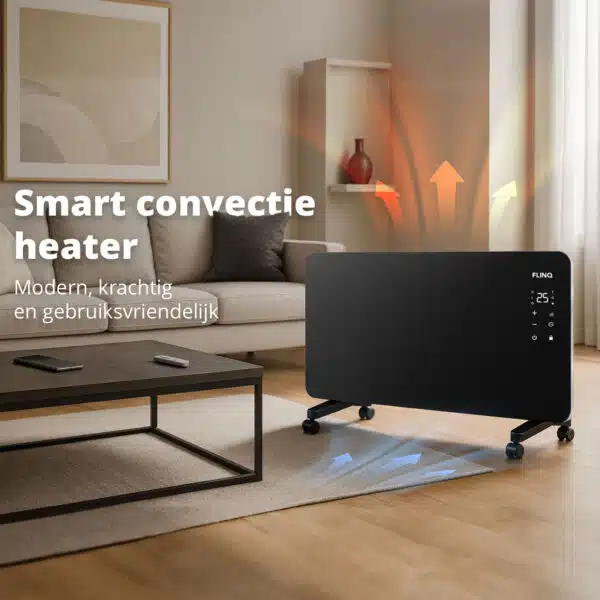
FlinQ Convector Heater: Heat a room in under 30 minutes.
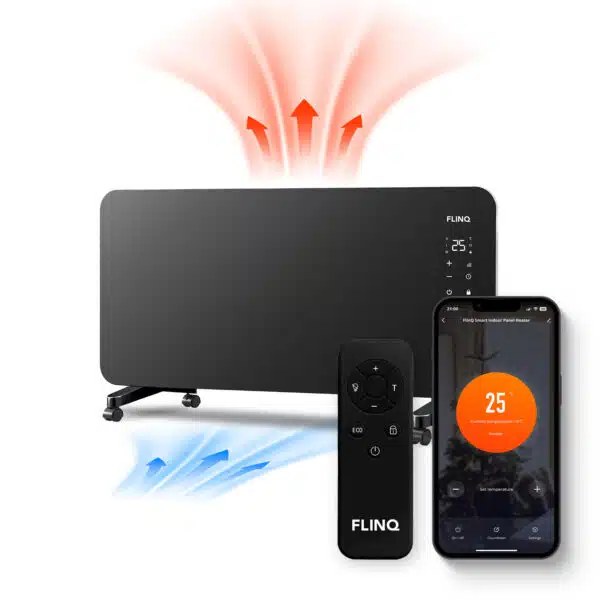
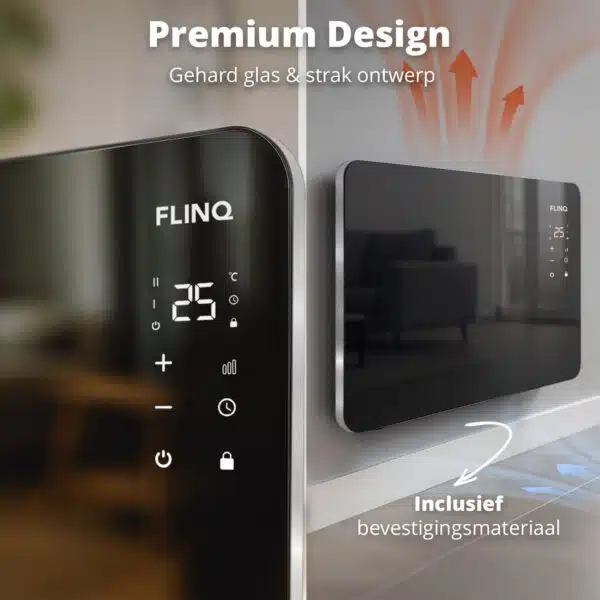
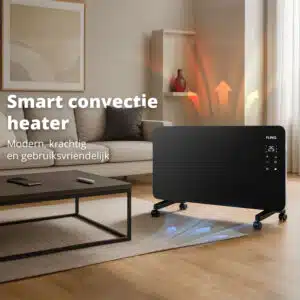
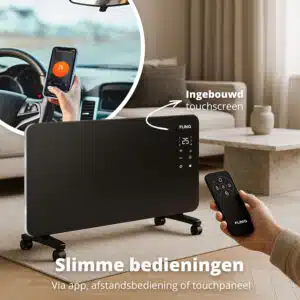
Thanks to its powerful output, stylish glass panel, and flexible mounting options, you can heat any room quickly and exactly how you want. Moving to another room? Easily roll the heater with you. Control it easily via the remote control, with your phone, or directly on the integrated touch panel. Ideal for home, office, or bedroom.
Key benefits at a glance
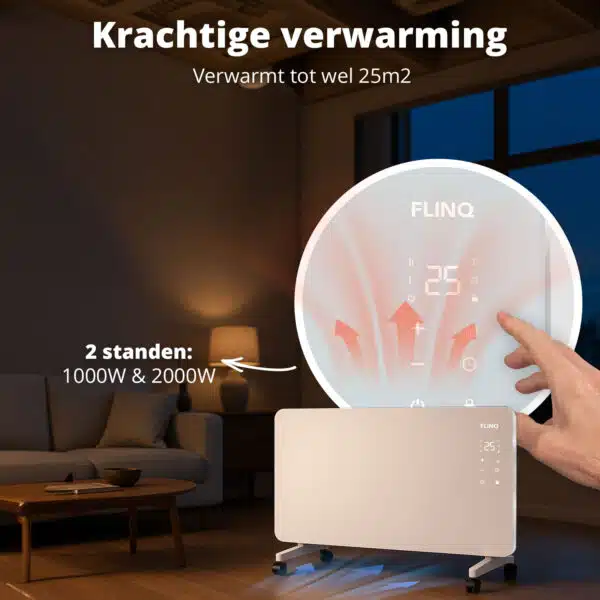
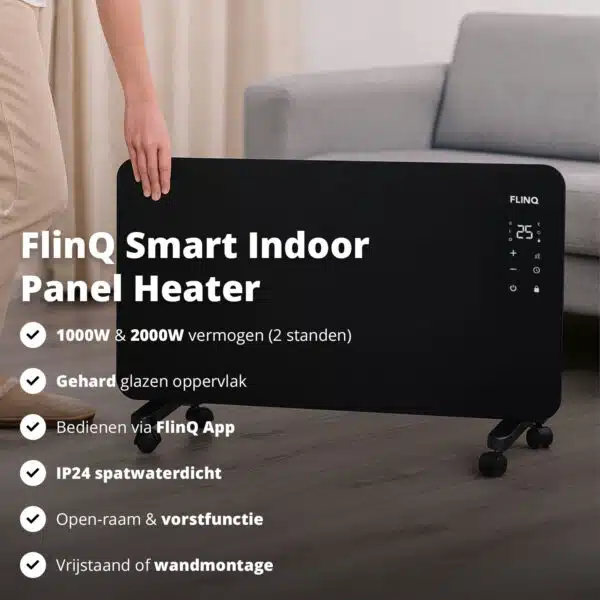
– Powerful convection heat: quickly heats rooms up to approx. 25 m² with 1000 W or 2000 W power.
– Fast heating: from 18°C to 21°C in approx. 20–25 minutes (depending on insulation).
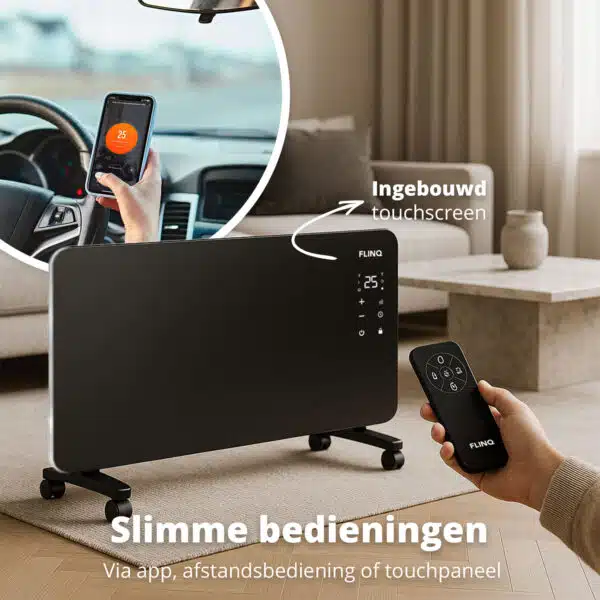
– Smart and user-friendly: can be operated via touch panel, remote control and smartphone app.
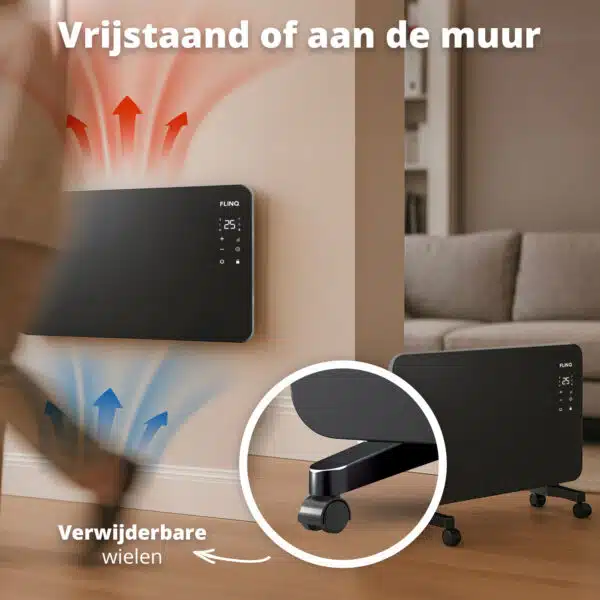
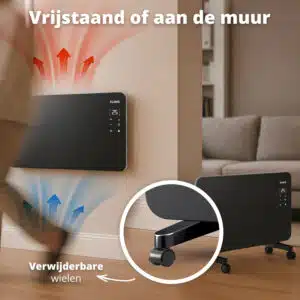
– Flexible placement: with removable wheels and integrated wall bracket for wall mounting.
– Safe & durable: tempered glass front panel, child lock and overheating protection.
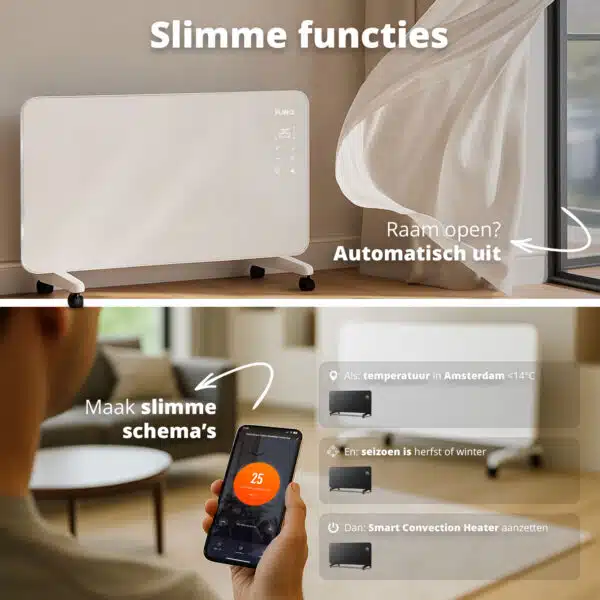
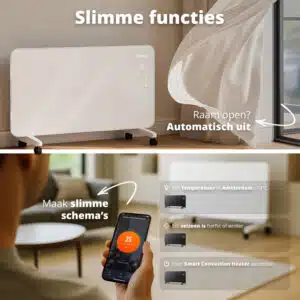
– Smart functions: automatic shutdown, open window detection, weekly programs and schedules.
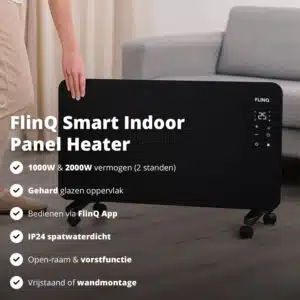
Two heating modes: 1000 W & 2000 W
The FlinQ Convector Heater offers a choice of two modes so you always use the right amount of heat:
1000 W: ideal for smaller rooms or to keep the temperature stable.
2000 W: maximum power for quickly heating larger rooms up to approx. 25 m².
Warm-up time:
A 25 m² room typically heats up from 18°C to 21°C in 20–25 minutes with the 2000 W mode, depending on insulation and humidity. It takes longer with 1000 W, but remains more energy-efficient for light additional heating.
Flexible mounting & portability
This heater adapts completely to your space and use.
– Can be placed on the included wheels: ideal if you want to move it easily.
– Can be mounted directly on the wall: thanks to the integrated wall bracket for a sleek, permanent installation.
Operate in three ways
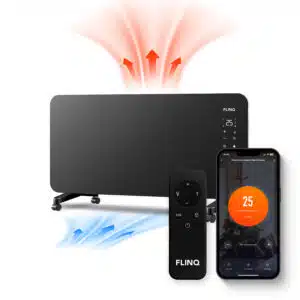
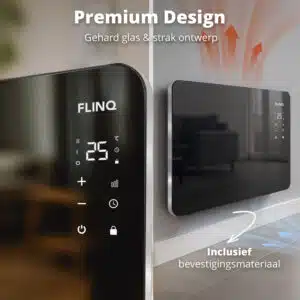
– Operation via the touch panel on the device
– Operation via the included remote control
– Full smart control via the FlinQ App: set the temperature, create weekly programs, set timers and switch on remotely
Need-to-know features
– Tempered glass panel: durable, modern and easy to clean
– Overheat protection: automatically shuts off at excessive temperatures
– Child lock: prevents accidental adjustment of settings
– Open window detection: automatically stops heating when heat loss is detected
– Smart schedules: set schedules and weekly programs via the app
– Automatic shutdown: extra safety and energy saving
Additional information
| Wall mounting | Yes, optional |
|---|---|
| Control via | App, Manual, Remote control |
| Energy source / power supply | Mains power |
| Geschikt voor | Indoor |
| Housing color | Black, White |
| Material | Glass |
| Thermostat | Yes |
| Timerfunctie | Yes |
| Type verwarming | Convection |
| Vermogen | 1000W, 2000W |
| Oppervlakte | 10m2, 15m2, 20m2, 25m2, 5m2 |
| Waterproof | IP44 – Splash-proof |
| Works with | Amazon Alexa, FlinQ App, Google Home, Homey, Smartlife App, Tuya App |
| ECO stand | Yes |
| Color | White, Black |
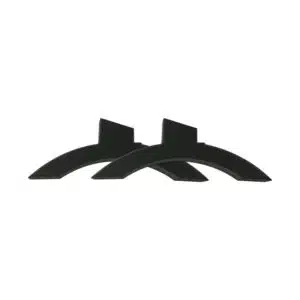
| Plaatsing | Mobile (with wheels), Standing (with feet), Wall-mounted |
You may also like…

 Swipe for all available parts
 When you get a message that your smart product is already linked to another account, you need to request an unbind. Click here to read how to do this.
Note: we can only process unbind requests for devices that are already linked to the FlinQ app.
If the device is linked to a Tuya account or Smart Life account, the request goes through that party. The request process works the same way.
How long does an unbind request take?
On average, this takes 3 to 5 working days. After that, you can try to connect the device again. Unfortunately, this process cannot be sped up.
When you get a message that your smart product is already linked to another account, you need to request an unbind. Click here to read how to do this.
Note: we can only process unbind requests for devices that are already linked to the FlinQ app.
If the device is linked to a Tuya account or Smart Life account, the request goes through that party. The request process works the same way.
How long does an unbind request take?
On average, this takes 3 to 5 working days. After that, you can try to connect the device again. Unfortunately, this process cannot be sped up.
With the FlinQ app, you can easily create a group of two or more devices. This is handy if you want to turn all your lights on or off at the same time, for example.
Follow these steps to create a group:
1. Open the FlinQ app on your smartphone or tablet.
2. Tap on one of the devices you want to include in the group.
3. Press the pen icon or the icon with three dots (“…”) in the top right corner.
4. Scroll down a bit and choose the “Create group” option.
5. In the overview, select the other devices you want to add to the group and press Save.
6. Give the group a name, optionally choose a room, and press Continue.
The heater’s display automatically turns off after a few minutes of inactivity. However, the heater continues to heat until the set temperature is reached. Pressing any button will turn the display back on. This setting cannot be adjusted at the moment.
You can easily share the device with one or more people. Follow the steps below:
1. Add the device to the FlinQ app on your device.
2. Open the relevant product in the FlinQ app.
3. Press the three dots “…” in the top right corner or the pen icon.
4. Scroll to the bottom and select “Share device”.
Important: Before proceeding, the person you want to share the device with must have downloaded the FlinQ app and created an account.
5. Choose “Share with the account FlinQ”.
6. Enter the email address of the other user (this must be the email address they used to register in the FlinQ app).
7. Press “Continue”.
The other person will now receive an invitation and can operate the device.
No, this is not possible. The heater has safety sensors and will shut off if mounted this way.
Yes, the FlinQ Smart Panel Heater has an ECO mode, which is 1000W. The high mode has a wattage of 2000W. Both can be set via the app or the buttons on the panel.
If the on/off light on the device is not flashing quickly, you need to put the device into pairing mode. Press the button with the 3 vertical lines for 5-10 seconds. When the on/off icon flashes quickly, follow the installation steps in the manual and in the app.
Yes, some smart products from FlinQ are supported by Homey in combination with the Tuya app. Check the Homey website to ensure that this product works well in your specific case.
It may happen that your network name or provider has changed. You will need to remove the device from your FlinQ app and add it again. In some cases, a reset of the device is necessary; you can find this procedure in your product’s manual.
FlinQ products only work with a 2.4 GHz network. In most routers, you can create separate SSIDs (network names) for both the 2.4 GHz and 5 GHz frequencies, for example:
– FlinQ-office-5GHz
– FlinQ-office-24GHz
A combined signal, where both the 2.4 GHz and 5 GHz frequencies fall under one SSID (network name), is not always supported.
If you need help changing your wifi settings, please contact your internet provider.
Yes, the FlinQ app is free. After downloading, you create an account and can connect your FlinQ devices.
The FlinQ app is available for free for both iOS and Android phones and can be downloaded via the links below.
A convection heater warms the air in the room, making a convection heater extremely suitable for heating spaces. Infrared provides an even temperature because it directly heats the objects in the room. But when you step out of the infrared radiation, it immediately feels colder. Infrared heaters are therefore used for heating things like a workspace, chair, or couch. Infrared provides radiant heat and cannot be used for heating rooms.
No, this product does not support Apple Homekit or Matter.
Yes, you can add one or more products to the FlinQ app, even if they are the same products. You can organize them into a group so you can easily control them simultaneously. You can also assign a location to a device, for example: living room, bedroom, or office.
This product works seamlessly with the FlinQ app. You can download it for free on both iOS and Android devices.
Yes, this product works with Google Home and Amazon Alexa. Install your product through the FlinQ app. Open your FlinQ app, tap on profile in the bottom right and then tap on Google Home at the top (the Google Home app will open). Now follow the steps in the Google Home app. Your device is now connected to your voice assistant and you can control it using voice commands.